Control Add-ins Supercharged – Frameworks

  • Reading time:2 mins read

In the last example I put online, we’ve noticed that it was difficult to achieve a good separation of concerns in the front end if we are building UI directly through DOM. Apart from the fact that it’s very inefficient, manipulating DOM directly makes it very difficult to structure your front-end logic. You quickly realize you need a framework for that.

And here I come to a big fat point I want to make once again, that I made in my session, too: don’t build a new framework; pick one off the shelf.

The thing is, in the JavaScript world there are ridiculously many frameworks. This article on Hackernoon is an introduction into this total insanity: https://hackernoon.com/how-it-feels-to-learn-javascript-in-2016-d3a717dd577f. There are memes, jokes, comics, websites, even Alexa skills that address the fact that people keep creating new JavaScript frameworks all the time. Guess what? A tiny fraction of them generate any traction at all, and only a few stick.

And don’t get me wrong – I am totally for improving things; “the room for improvement is the largest room in the world” they say. But I am not quite convinced that building a yet another framework will benefit the posterity all that much. If you want to improve on what we have, most of the leading frameworks are open-source, contribute away.

As with previous (and future) posts in this series, there is a GitHub repo + branch that accompanies this blog post, and you can find it here: https://github.com/vjekob/supercharged_01/tree/02-framework

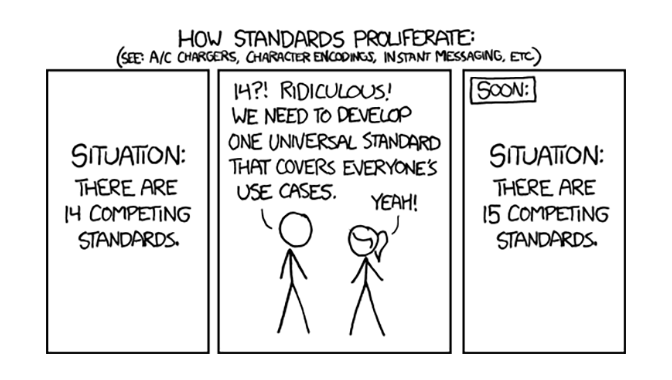
(The featured image used under CC license from https://worldpece.org/content/how-standards-proliferate)

Continue ReadingControl Add-ins Supercharged – Frameworks

Control Add-ins Supercharged – Separating concerns

  • Reading time:2 mins read

If you know me, you know that I am obsessed with separation of concerns. It’s the core principle of good design, and good design is what I am always striving for.

The original Control Add-ins Supercharged example showcased how most of non-web developers (a category into which most of AL developers squarely fall) would develop a control add-in: just stuff everything into a single script, and all is fine. But it isn’t fine, if for nothing else, then because it can be done much better.

My next example is showing how you might attempt to solve the separation of concerns issue. The first step you may take is splitting the single script file into multiple files. For example, you may separate UI logic from state management logic, from AL-to-JavaScript interface logic. However, the example I am presenting today is yet an example of a good solution. It’s in fact a yet another “don’t do it this way” example. There are a few more wrong steps I want to intentionally take before I start solving problems for real, one by one.

The primary issue that my second repo (branch 01-split-js) addresses is that it separates front-end concerns as much as reasonably possible. However, as you will see in the repo description, once you attempt to separate logic into multiple JavaScript files, the separation of concerns isn’t really achieved, and there are a few files where you still have a mish-mash of UI, data, state, events, precisely those things that shouldn’t go together. The problem is, whatever way you attempt to solve it, you soon realize that the solution is just not good enough. As long as you are attempting to generate and maintain your UI using pure DOM, it will be impossible to achieve any decent level of separation of concerns.

So, head over to https://github.com/vjekob/supercharged_01/tree/01-split-js and check out the repo description (and content) and see for yourself why this approach is better than the previous one, but still far from good.

See you soon with the next example.

Continue ReadingControl Add-ins Supercharged – Separating concerns

Control Add-ins Supercharged – Kicking off

  • Reading time:3 mins read

Control add-ins have always been my passion. Not only because I’ve been working with JavaScript since 1996, and I could call it my mother tongue, but because I just love how they allow us to create amazing user interfaces. Business Central has made huge progress in terms of usability of the web client, however it’s still not the most user friendly thing out there, and performing some tasks may be tedious. Control add-ins help because they allow us to develop custom user interface over standard data and processes.

However, when building control add-ins, it’s not only about what we build, but also about how we build it. That was the central tenet of my NAV TechDays 2019 session named “Control Add-in Development Supercharged”, in which I wanted to show how control add-in development can be indistinguishable from modern web front end development. Because that’s exactly what it is – web front end development.

For my session I’ve prepared total of 36 demos. However, I realized just before the session that I won’t be able to deliver all of them, while also delivering all the theory I wanted to present. So I decided to post all of the demo source code for all 36 demos. However, this year I wanted to take a step further: I wanted to not only deliver the code as-is without any explanations, I actually wanted to explain all of it.

And this is what this blog series will be about – how to supercharge the control add-in development and make it as modern as it can possibly get. All with code examples and explanations. In the end, you’ll get a nice tutorial of modern control add-in development, that I hope will help you build your skills and take your control add-in development to the next level.

All code examples and explanations will be in in GitHub, and the first example is already there.

So, head to https://github.com/vjekob/supercharged_01 and check out the first example.

I won’t be posting code explanations here on my blog, I’ll merely be posting about the latest contribution to my GitHub repositories, and will add a line or two to explain what a particular repo or branch are about.

So, today: repository supercharged_01, branch master.

This branch introduces the “Simpler” control add-in and sets the stage for all further demos. It contains a very simple AL extension that contains a control add-in. The control add-in does not provide a feature-complete functionality, but merely showcases how it could be possible to simplify an otherwise less user-friend process. Keep in mind that the control add-in itself does not matter. What matters is its structure and how it was created.

In this branch, the control add-in is done in a “naive” way, how a typical AL developer without much experience in JavaScript or web development would develop it.

Stay tuned for (far) more content over the following days and weeks – it takes time to explain 36 demos in detail.

Continue ReadingControl Add-ins Supercharged – Kicking off

NAV TechDays 2019: {ConnectApp}² demos

  • Reading time:1 min read

This year’s NAV TechDays was again an amazing event. More than 1400 participants, 18 sessions, great content, it again surpassed the records set last year. It was an honor and a pleasure to be able to speak again.

This blog post is not about the conference – I am not a news reported This is merely about demos that Waldo and I delivered on November 22, during our session named {ConnectApp}². There were two React Native demos, and I have now published their source code on GitHub:

These demos are provided as-is, and I won’t be blogging about their content in detail – they are just two React Native apps that don’t showcase much by themselves. The “Main Demo” app does – however – contain some examples of how to call Business Central APIs (which was the topic of our session).

Over the course of the next days, I will publish the demos from my “Control Add-ins Supercharged” session as well, so stay tuned.

Continue ReadingNAV TechDays 2019: {ConnectApp}² demos

Microsoft.Dynamics.NAV.InvokeExtensibilityMethod

  • Reading time:8 mins read

Now that you are done through this mouthful of the title, you may recognize that it’s the method you invoke when you want to run a control add-in trigger in AL from JavaScript.

There is nothing new about this method itself, it’s just that most people aren’t aware of full power of this method, and they are using this method in a very inefficient way. In this blog, I want to show you what this method can do for you that you may have not been aware of. And I hope I get you to change your habits.

The syntax is this:

Microsoft.Dynamics.NAV.InvokeExtensibilityMethod(name, args[, skipIfBusy[, callback]]);

It takes at minimum two arguments, and this is what most people invoke it. Obviously, name is the name of the event as declared in the controladdin object that you also must implement as a trigger inside the usercontrol in the page that uses it. Also, args is the array of arguments you want to pass to AL.

Imagine this is how you declare your event:

event SayHello(FirstName: Text; LastName: Text);

Then from JavaScript you would invoke it like this:

Microsoft.Dynamics.NAV.InvokeExtensibilityMethod("SayHello", ["John", "Doe"]);

So far, very simple, obvious, and easy. But here we get to the biggest mistake most people do when invoking the Microsoft.Dynamics.NAV.InvokeExtensibilityMethod method. They invoke it directly. The reason why it’s a mistake is because most often you’ll want to synchronize the invocations between JavaScript and AL as much as you can, and this method – as anything in JavaScript that invokes stuff outside JavaScript – is asynchronous. If you have this:

Microsoft.Dynamics.NAV.InvokeExtensibilityMethod("SayHello", ["John", "Doe"]);
alert("You see me immediately");

… you will see the “You see me immediately” message before AL even gets a chance to start executing.

Yes, you can take advantage of more arguments here to make it behave differently. So, let’s take a look at the remaining two arguments.

The skipIfBusy argument tells the control add-in JavaScript runtime to not even invoke your event in AL if the NST session is currently busy doing something else. If you omit it, the skipIfBusy parameter defaults to false so it means your AL event will be raised, and if AL is already busy, it will be raised as soon as AL stops being busy.

The callback argument, though, is where cool stuff happens. This arguments is of function type (you can imply as much from its name), and it is invoked as soon as AL has finished doing whatever you just made it busy with. So, if you want some JavaScript code to happen after the SayHello event completes its work, you can do it like this:

Microsoft.Dynamics.NAV.InvokeExtensibilityMethod(
  "SayHello",
  ["John", "Doe"],
  false,
  function() {
    alert("You see me after SayHello finished running in AL");
  });

However, that’s not really the most beautiful way of writing JavaScript. That’s how you would write it in late 1990’s, we are now nearly a quarter century ahead. Let’s write some at least tiny little bit less outdated JavaScript, and let’s introduce Promises. Promises are objects which allow you to synchronize asynchronous calls in a syntactically less offensive way than callbacks.

Let’s take a look at why promises are superior to callbacks.

Imagine you want to structure your code nicely, and you don’t want to just call your extensibility methods out of a blue, so you decide to wrap your call into a function, like this:

function sayHello(first, last, callback) {
   Microsoft.Dynamics.NAV.InvokeExtensibilityMethod(
     "SayHello", 
     [first, last],
     false,
     callback);
 }

 // Invoking the function
 sayHello("John", "Doe", function() {
   alert("You see me after SayHello finished running in AL");
 });

The syntax of the sayHello invocation is not really that easy to follow. However, we could translate the entire example to promises:

function sayHello(first, last) {
  return new Promise(resolve =>
    Microsoft.Dynamics.NAV.InvokeExtensibilityMethod(
      "SayHello", 
      [first, last],
      false,
      resolve));
}

// Invoking the function
sayHello("John", "Doe")
  .then(() => alert("You see me after SayHello finished running in AL"));

… and suddenly it becomes more readable. (Okay, a part of it being more readable is that I used arrow functions, but that’s because they are both supported at the same language level of JavaScript, and if your browser supports Promises, it will support arrow functions too, and if it doesn’t support Promises, it won’t support arrow functions either).

Apart from this readability benefit, there is another, far bigger benefit of wrapping your Microsoft.Dynamics.NAV.InvokeExtensibilityMethod invocations into promise-returning wrapper functions: it’s the fact that all promises are awaitable in JavaScript.

In newer versions of JavaScript (EcmaScript 2017 and newer) there is a concept of async functions. Async functions perform some asynchronous work, and you can await on them to make your code look and behave as if it were synchronous.

For example, if you have a function declared as this:

async function somethingAsync() {
  // Do some asynchronous work
}

… then you can invoke it like this:

await somethingAsync();
alert("This won’t execute before somethingAsync completes its async work");

Cool thing about async/await is that it’s nothing more than syntactic sugar for Promises. Every async function implicitly returns a Promise, and you can invoke it either with await syntax, or with .then() syntax. Cosenquently, if a function explicitly returns a Promise, you can await on it as if it were declared as async.

In short, in our earlier example, we could easily do this:

function sayHello(first, last) {
  return new Promise(resolve =>
    Microsoft.Dynamics.NAV.InvokeExtensibilityMethod(
      "SayHello", 
      [first, last],
      false,
      resolve));
}

// Invoking the function
await sayHello("John", "Doe");
alert("You see me after SayHello finished running in AL");

… and it would have exactly the same meaning as the earlier example, except that this time it’s far more readable.

At this stage, our sayHello function is a handy asynchronous wrapper around Microsoft.Dynamics.NAV.InvokeExtensibilityMethod method invocation, but we can do better than that. Instead of having to write wrappers for every single event declared in your controladdin object, you could write something like this:

function getALEventHandler(eventName, skipIfBusy) {
  return (…args) => new Promise(resolve =>
    Microsoft.Dynamics.NAV.InvokeExtensibilityMethod(
      eventName,
      args,
      skipIfBusy,
      resolve));
}

When you have that, you can use it like this:

// Obtain a reference to an asynchronous event invocation wrapper
var sayHello = getALEventHandler("SayHello", false);

// … and then use it as an asynchronous function
await sayHello("John", "Doe");
alert("You see me after SayHello finished running in AL");

Cool, isn’t it? You now not only never have to write that wordy Microsoft.Dynamics.NAV.InvokeExtensibilityMethod ever again (and risk making typos), you also have it fully synchronizable using the await syntax. But we can get even cooler – way cooler – than that. Hold my beer.

You know already that event invocations in AL are void, or that they cannot ever return a value. Your JavaScript cannot invoke AL and have AL return a value to it, that’s just not how AL/JavaScript integration works. At the heart it’s because it’s all asynchronous, but at the end of it, it’s just because Microsoft never cared enough to make it fully synchronized through an abstraction layer that could make it possible. Now that we’ve got it to an awaitable stage, let’s take it to another level by allowing AL to actually return values to your JavaScript wrappers.

Imagine that you declare this event in your controlladdin:

event GetCustomer(No: Code[10]);

You pass a customer number to it, and you want it to return a JSON object containing your customer record information by its primary key. Ideally, you’ll want to invoke it like this:

var cust = await getCustomer("10000");

Of course, that won’t work, because your GetCustomer trigger in AL – once you implement it in a page – cannot return values. You’d have to have a method declared in your controladdin object and then implement that method in the global scope in JavaScript, where you can pass the result of this operation, something you’d declare like this:

procedure GetCustomerResult(Cust: JsonObject);

However, implementing it as a separate function in your JavaScript would require some acrobatics to allow you to retain your await getCustomer() syntax. But this is only true if you take the traditional approach of implementing methods as global-scope-level functions in one of your scripts. In JavaScript, you can implement methods on the fly, so let’s do it.

Let’s start with the statement that the GetCustomerResult function should be available in JavaScript only during the invocation of GetResult event in AL, and invoking it outside of such invocation would be a bug, and should not be allowed. When you do it like this, then you can write your code in such a way that you create this function in JavaScript just before you invoke the AL event, and you delete this function immediately when AL returns the result, something like this:

 function getALEventHandler(eventName, skipIfBusy) {
  return (...args) => new Promise(resolve => {
    var result;

    var eventResult = `${eventName}Result`;
    window[eventResult] = alresult => {
      result = alresult;
      delete window[eventResult];
    };

    Microsoft.Dynamics.NAV.InvokeExtensibilityMethod(
      eventName,
      args,
      skipIfBusy,
      () => resolve(result));
  });
}

You can then do something like this:

// Obtain a reference to an asynchronous event invocation wrapper
var getCustomer = getALEventHandler("GetCustomer", false);

// … and then use it as an asynchronous function
var cust = await getCustomer("10000");
alert(<code>Your customer record is ${JSON.stringify(cust)});

How cool is this?

There is an even further level of awesomeness you can add to your event invocations, and it has to do with the skipIfBusy argument, but that’s a topic for a future blog post, I think you have enough to chew on for now. And I know that at this stage, invoking Microsoft.Dynamics.NAV.InvokeExtensibilityMethod directly, instead of through a pattern such as this, seems very stone age.

Continue ReadingMicrosoft.Dynamics.NAV.InvokeExtensibilityMethod

Tips & Tricks: Going full screen with control add-ins in BC150

  • Reading time:2 mins read

Long time no see here, for I don’t know which time. That’s how it is these days, life kicks in, work kicks in, stuff kicks in, and then time flies and months go between posts here.

I am currently delivering my “Developing Control Add-ins using AL language” workshop at the first pre-conf day of NAV TechDays 2019, and while my group is busy developing their control add-in, I decided to answer the question I got five minutes ago: “can we please have this piece of code”?

So, here it goes. This little trick will allow you to go full screen with your control add-in in BC150. Having a full-screen control add-in is not something that you can do with just setting properties on your controladdin object, but it’s absolutely possible. Also, this is not something you can only do with BC150 – as a matter of fact you can do it in every single version of the Business Central or Dynamics NAV web client (or tablet, or phone client for that matter). However, every single client and every single version has a different overall HTML structure, so this particular trick applies to BC150. It may work on 140, it may work on 160 in the future, but it also may not.

The principle is the same, though: you hide unnecessary screen elements, and you make your control add-in iframe element full width and full height, and that’s it.

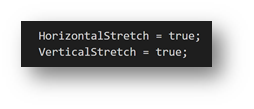
This is what your controladdin object must declare:

And then, this is what your control add-in initialization JavaScript code should do (typically you’d put this into your startup script):

function initialize() {
    function fill(frame) {
        if (!frame)
            return;
        frame.style.position = "fixed";
        frame.style.width = "100vw";
        frame.style.height = "100vh";
        frame.style.margin = "0";
        frame.style.border = "0";
        frame.style.padding = "0";
        frame.style.top = "0";
        frame.style.left = "0";
        frame.ownerDocument.querySelector("div.nav-bar-area-box").style.display = "none";
        frame.ownerDocument.querySelector("div.ms-nav-layout-head").style.display = "none";
    }
    
    window.top.document.getElementById("product-menu-bar").style.display = "none";
    fill(window.frameElement);
    fill(window.frameElement.ownerDocument && window.frameElement.ownerDocument.defaultView && window.frameElement.ownerDocument.defaultView.frameElement);
}

And that’s it.

Good luck full-screening!

Continue ReadingTips & Tricks: Going full screen with control add-ins in BC150

Using Font Awesome icons in control add-ins

  • Reading time:4 mins read

This post has been long overdue. I’ve had it in my to-do list for nearly four years now, but it always ended up in the not today category. Funny how many times I’ve implemented it already, and how many times I’ve presented this, and I never ever found a few minutes to create a demo repository and a blog to come with it. So, here we go.

Including web fonts in your control add-ins is no rocket science, really. Control add-ins are just pieces of HTML, CSS, and JavaScript running in an iframe, so whatever you can do within an iframe from anywhere else, you can do it from control add-ins. Web fonts are no different. The problems start if you want to package web fonts into the control add-in so that you can use them even when your BC/NAV instance is running in an isolated network, or if you simply want to eliminate any external dependencies.

Control add-ins support packaging script, stylesheet, and image files. This could make you think that you cannot include web fonts. But that would be wrong. If you read my blog post about abusing images to load HTML files, then it might give you some ideas. Yes, you can use the same trick to load web fonts or just about any other external resource.

Let’s take a look how to include a web font, and let’s use Font Awesome as an example. Because it’s just awesome.

Continue ReadingUsing Font Awesome icons in control add-ins

Automating control add-in development using gulp

  • Reading time:11 mins read

Happy new year everyone! Last year was a bit slow for me, until the very end, when I churned out a year’s worth of posts just in two days. I hope this year to be a bit different, and let me kick-start it with a concept I’ve been playing with recently.

If you are into control add-ins development, chances are you’re familiar with my Visual Studio Project Template for control add-ins. It’s cool because it allows you to deploy all of your changes all the way over to NAV just by pressing F6. But it sucks because it’s based on Visual Studio, which is so… not 2019. It’s true, Microsoft never prescribed exactly which tool you should use to build your control add-ins once you’ve created the interface. It was entirely up to you. For me, Visual Studio used to be the tool of choice because in there you create the interface, and then why not just create everything in there.

But recently, I thought – why not using VS Code to develop control add-ins “v1” (that is: the control add-ins that work in pre-AL, pre-extensions “v2”, pre-NAV2018/BC environments)? If you, like me, still have to do those from time to time, but absolutely want to use VS Code instead of Visual Studio, then this post is for you.

Last month, I’ve decided to port all development work on a major control add-in from Visual Studio into VS Code. When I say “major”, I mean it: it’s 16K lines of JavaScript code in 138 source code files, not including 3rd party libraries. To automate that in Visual Studio, I used a hodge-podge of build tasks, Windows batch scripts, PowerShell scripts, external utilities for zipping and minification, and the first thing I did – stupid, I know – when I transferred all my work to VS Code was to automate all of my tasks exactly the same way. So, I took all the same batch scripts, configured them as VS Code tasks, and I was happy. Not. It was slow, and ugly.

And then I remembered gulp.

It’s funny, gulp should have been the first thing to cross my mind. But, while I knew it was there, I never did anything with it. But, how complicated can it be? It turned out, I was able to replace all of the automation I had earlier into one nice gulpfile.js and turn my entire development experience completely upside-down. It’s that good.

So, I decided to share a little bit of my learning path, lessons learned, hints, tips, tricks, and all else in a series of blog posts about how to automate control add-in development using gulp. This is the first post in the series of an unknown number of posts to follow up.

Disclaimer: this particular post is not a NAV 2018/BC/AL. This is (mostly) for pre-BC control add-in developers. However, a lot of gulp concepts I’ll talk about are readily applicable to AL and BC world.

Continue ReadingAutomating control add-in development using gulp

NAV TechDays 2018 Demos: Keyboard Shortcut Listener

  • Reading time:6 mins read

The last of the NAV TechDays 2018 demo series comes with a little story.

While Waldo and I were preparing the “Evolution of the Titan” session, on Sunday before the conference, we were brainstorming the ideas of what would constitute a cool non-visual JavaScript demo. I wanted to showcase the things that JavaScript can do for you in control add-in context, but a less obvious thing. Everyone is expecting to see some cool visual demos, but I wanted to point out the vast possibilities in the non-visual area. Then Waldo asked me: can you make it run an action on a keypress, like post a document on F9?

And that was it! An amazingly cool demo that shows how you can do really cool stuff that falls beyond the visual realm.

Okay, I’ll calm down a bit. Keyboard shortcuts? Seriously? Well, unfortunately, yes. In NAV/BC web client (universal client included) there are almost no keyboard shortcuts. Microsoft is working on some improvements here, but the important thing, allowing developers to bind specific keyboard shortcuts to specific actions, is still conspicuously missing from NAV/BC.

So, I did this demo.

Continue ReadingNAV TechDays 2018 Demos: Keyboard Shortcut Listener

NAV TechDays 2018 Demos: User Profile Picture

  • Reading time:5 mins read

One of the more effective, and probably completely unexpected, demos at Waldo’s and mine NAV TechDays 2018
session was the user profile picture demo. I say “completely unexpected” is that it shows something that you normally don’t expect from control add-ins. When hearing “control add-in”, most developers (but also most Microsoft people) have in mind a visual control that visualizes some data from NAV/BC and possibly allows you to interact with (C/)AL through that piece of UI. However, there are many other things possible, like having a completely non-visual “controls” that tap into the functionality of the web client and extend its functionality beyond what it was originally designed to do.

One of these is the user profile picture.

If you didn’t attend (or watch) the session, this is what the demo is about: it makes use of the user silhouette icon in the upper-right corner (that actually doesn’t represent anything, just sits there) and allows you to take your selfie and then uses that selfie as your profile picture that’s showing there instead. Pretty neat and cool..

How did I do it?

Continue ReadingNAV TechDays 2018 Demos: User Profile Picture